
Welcome to the ColorDudes.com online coloring tool. This free browser-based tool lets you color in your favorite coloring pages directly on your screen, no download required. Whether you are a parent looking for a fun activity for your child, a teacher running a classroom art session, or someone who just enjoys relaxing with a coloring page, this guide will walk you through everything you need to know.
This guide covers how to open a coloring page, use every available tool and feature, save or download your finished artwork, and fix common problems if something goes wrong.
Table of Contents
Getting Started
You do not need to create an account to use the ColorDudes.com online coloring tool. The tool is completely free and runs directly in your web browser.
How to Open a Coloring Page
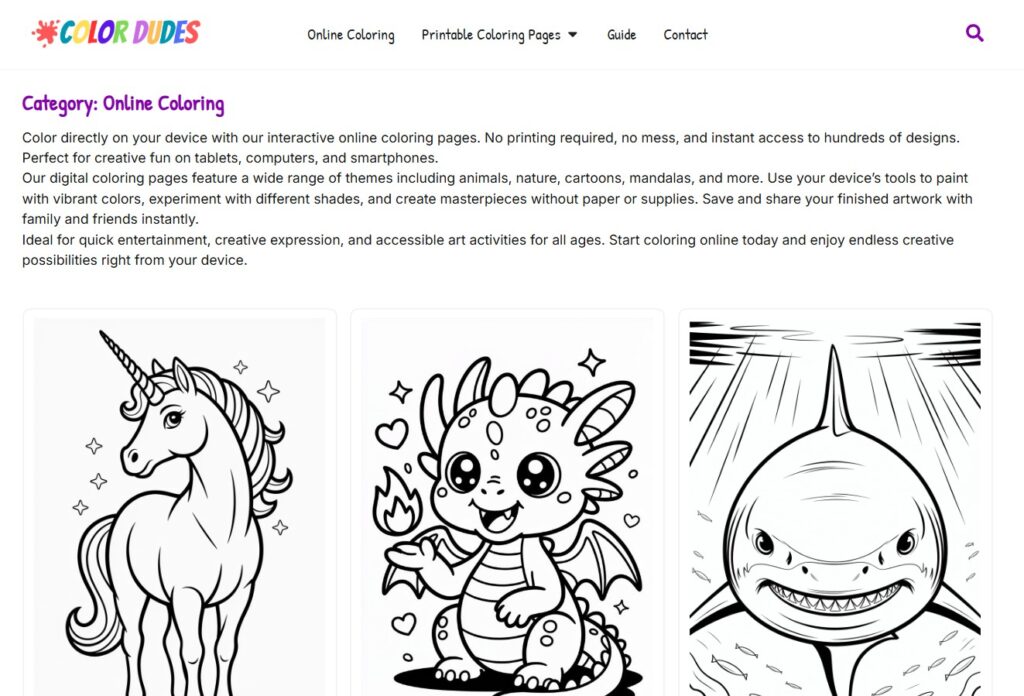
- Go to https://colordudes.com/category/online-coloring-pages/ to browse all available online coloring pages.
- Click on any coloring page you want to color.
- The page will open in the online coloring tool automatically.
- Wait a moment for the canvas to load. Most pages load within a few seconds on a standard internet connection.
What You See on First Load
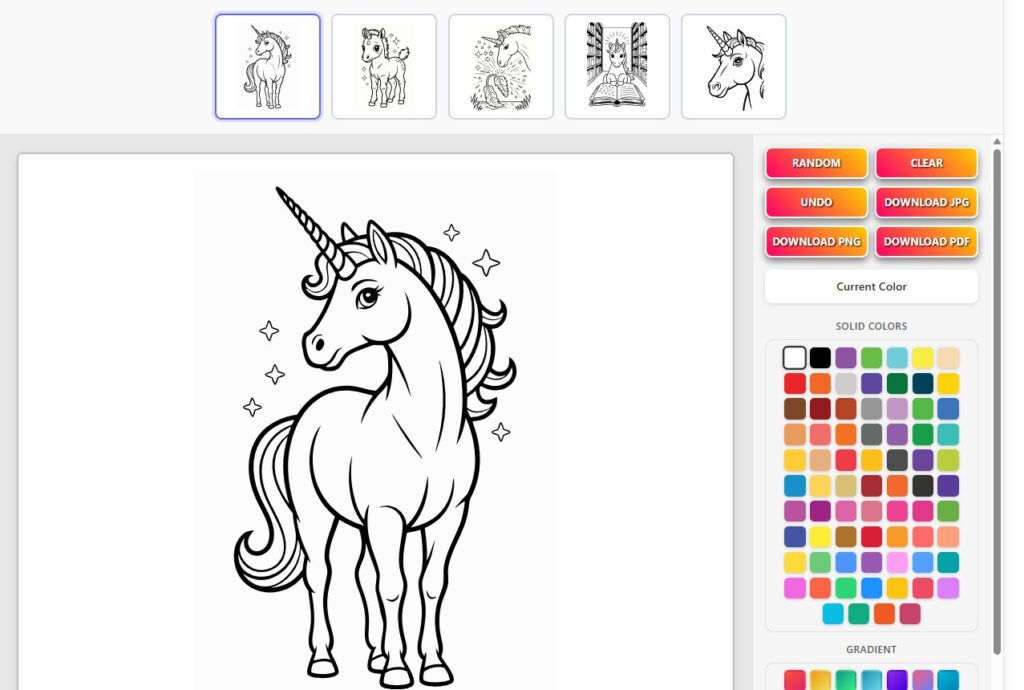
Once the coloring page loads, you will see:
- The coloring image in the center of the screen (the canvas)
- A toolbar along the top or side of the canvas with drawing tools
- A color palette below or beside the canvas
- Buttons for undo, redo, download, and reset
Main Canvas and Workspace

The canvas is the large white area in the center of the screen where the coloring page is displayed. All your coloring activity happens here.
The coloring image shows black outlines defining different sections. Each section can be filled with a color using the fill tool, or you can paint freely using the brush tool. The outline lines themselves stay fixed so your artwork always looks clean and defined.
The canvas adjusts to fit your screen size. On larger monitors the image will appear bigger. On smaller screens or mobile devices the image will be smaller, but you can zoom in to work on fine details
Navigation and Controls
The navigation controls help you move around the canvas and adjust your view. These are especially useful when working on large or detailed coloring pages.
Zoom In and Zoom Out
- Click the + (zoom in) button to magnify the canvas and see fine details more clearly.
- Click the – (zoom out) button to shrink the view and see the full image.
- You can also use your mouse scroll wheel to zoom in and out on most desktop browsers.
Tip: Zoom in when coloring small areas like hair details or clothing patterns. Zoom back out to check how the full image looks.
Panning and Moving Around the Canvas
When you are zoomed in, you can move around the canvas by clicking and dragging in an empty area outside the image, or by using a two-finger scroll on a touchpad or touchscreen.
Reset View
If your zoom or position gets confusing, look for a Reset View or Fit to Screen button. Clicking it returns the canvas to its default centered position and zoom level.
Undo and Redo
- Undo (left-pointing arrow, or Ctrl+Z on keyboard): Removes the last action you took.
- Redo (right-pointing arrow, or Ctrl+Y): Brings back an action you just undid.
You can undo and redo multiple steps, so do not worry about making mistakes.
Display and Theme Settings
Some browsers and devices may allow you to use ColorDudes.com in your system’s light or dark mode. The tool itself is designed with a clean, light background so that coloring page details stay clearly visible.
Fullscreen Mode
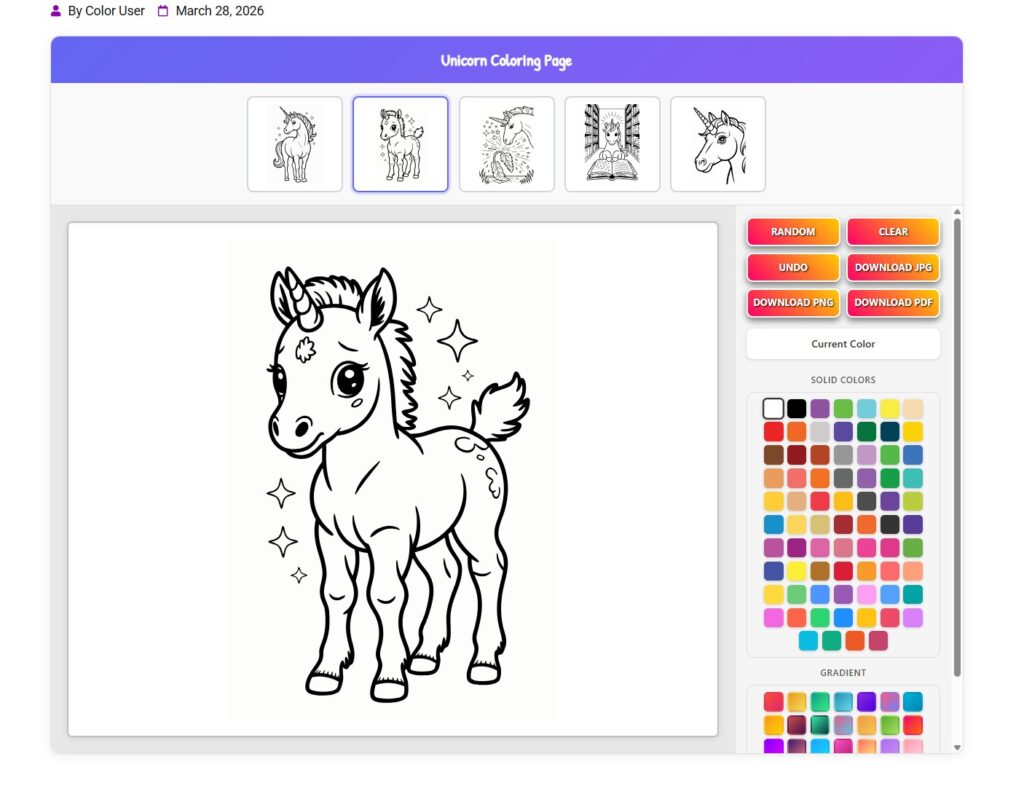
For a more immersive coloring experience, you can use your browser’s fullscreen mode:
- On Windows: Press F11 on your keyboard.
- On Mac: Press Control + Command + F.
- On mobile: Use your browser’s fullscreen option from the menu.
Main Features
Paint Bucket (Fill Tool)
The paint bucket fills an entire enclosed section of the coloring page with one click. This is the fastest way to color large areas.
Where to find it: Look for the bucket icon on the toolbar. It is usually one of the first tools shown.
How to use it:
- Select the paint bucket tool by clicking the bucket icon.
- Choose a color from the palette.
- Click anywhere inside an enclosed section of the coloring page.
- The entire section fills instantly with your chosen color.
When it is helpful: Use the paint bucket to quickly fill large areas like backgrounds, clothing, or skin tones. It is much faster than painting by hand.
Tip: Make sure you click inside a fully enclosed area. If there is even a tiny gap in the outline, the color may spill into neighboring sections. Zoom in to check for gaps before filling.
Brush Tool
The brush tool lets you paint freehand directly onto the canvas. You control exactly where the color goes by clicking and dragging.
Where to find it: Look for the paintbrush or pencil icon on the toolbar.
How to use it:
- Select the brush tool by clicking its icon.
- Choose a color from the palette.
- Click and drag across the canvas to paint.
When it is helpful: Use the brush for creative effects like gradients, shading, blending different colors in one section, or adding detail that a flat fill would not achieve.
Tip: Use a smaller brush size for detail work and a larger brush for filling broad areas quickly. See the Adjusting Brush Size section for instructions.
Color Picker
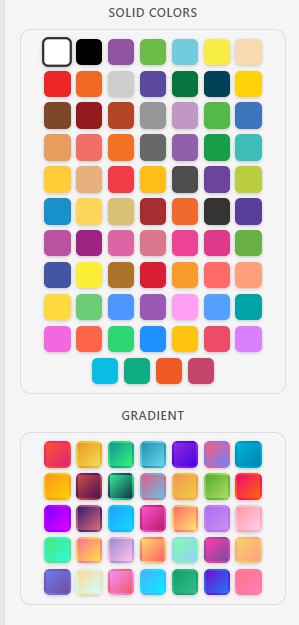
The color picker lets you select any color to use with your active tool. It includes a preset palette of common colors and an option to enter a custom color.
Where to find it: The color palette is displayed as a row or grid of colored squares below or beside the canvas.
How to use it:
- Click any colored square in the palette to select that color.
- The selected color is shown in a preview swatch near the toolbar.
- The tool you currently have active (brush or fill) will now use this color.
Tip: Look for a rainbow or gradient square on the palette. Clicking it opens the full color picker where you can enter a hex code for a precise color match.
Eraser Tool
The eraser removes color from the canvas and restores the original white background in that area.
Where to find it: Look for an eraser icon on the toolbar.
How to use it:
- Select the eraser tool by clicking its icon.
- Click and drag over any area where you want to remove color.
- The color is cleared and the white canvas is restored.
When it is helpful: Use the eraser to fix mistakes, remove accidental brush strokes that went outside the lines, or clean up areas before recoloring them.
Undo and Redo
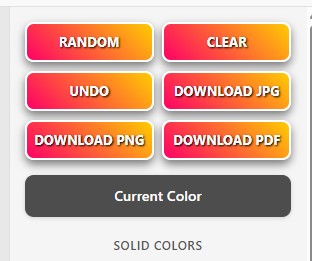
Undo reverses your last action. Redo reapplies it if you changed your mind. These are available as toolbar buttons and via keyboard shortcuts:
- Undo: Ctrl + Z (Windows) or Cmd + Z (Mac)
- Redo: Ctrl + Y (Windows) or Cmd + Shift + Z (Mac)
Tip: If you accidentally fill the wrong section, press Undo straight away. You do not need to manually erase the mistake first.
Color Palette
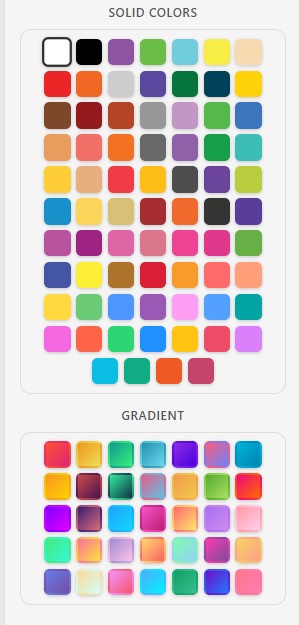
The color palette is the collection of preset colors available in the tool. It gives you quick access to common colors without needing to open the full color picker every time.
The palette appears as a row or grid of colored squares, usually at the bottom or side of the canvas. Click any colored square to select that color. Your active tool will immediately switch to using that color.
Tip: If none of the preset colors match what you need, look for a Custom Color or More Colors button within or near the palette. See the Custom Colors section for details.
Advanced Features
Custom Colors
The full color picker lets you go beyond the preset palette and choose any color imaginable.
- Click the rainbow-gradient square or the Custom button in the palette area.
- A color picker dialog opens.
- Use the color spectrum slider to choose a hue.
- Use the main gradient box to adjust brightness and saturation.
- If you know a specific hex code (for example #FF5733), type it in the hex input field.
- Click OK or Apply to confirm your custom color.
- Your chosen color is now active and ready to use.
Adjusting Brush Size
Changing the brush size gives you more control over your coloring, especially when working on detailed sections.
- Select the brush or eraser tool.
- Look for a size slider or a set of small, medium, and large brush buttons on the toolbar.
- Drag the slider or click the size option you want.
- Your brush or eraser will now apply color at the new size.
Coloring with Zoom
Zooming in while coloring is one of the best techniques for getting precise results on detailed images.
- Zoom into the area you want to work on using the zoom buttons or scroll wheel.
- Select your brush tool and a color.
- Paint carefully within the zoomed-in view.
- Zoom back out to check the overall result.
- Repeat as needed for different sections.
This technique is especially useful for faces, hair, small clothing details, and background patterns.
Save, Download, and Print
Once you are happy with your coloring, you can save or download your artwork.
Downloading Your Coloring Page
- Click the Download or Save Image button on the toolbar.
- Your finished coloring page will be saved as a PNG or JPG image file to your device.
- Find the downloaded file in your device’s Downloads folder.
The downloaded image includes your coloring exactly as it appears on screen. There are no watermarks added to your downloaded artwork.
Printing Your Coloring Page
- Download the image file first using the Download button.
- Open the downloaded image on your device.
- Use your device’s standard print function (Ctrl + P on Windows, Cmd + P on Mac).
- Select your printer, choose paper size (A4 or Letter), and click Print.
Tip: For the best print quality, choose the highest quality print setting and use standard white paper or photo paper for bright colors.
File Formats and Quality
- Downloaded files are typically saved as PNG format, which preserves full quality with no compression artifacts.
- PNG files work well for printing and sharing on social media.
- You can insert the PNG file directly into a Word document or presentation after downloading.
Mobile and Tablet Use
The ColorDudes.com online coloring tool works on smartphones, tablets, and desktop computers without any app to install.
Using the Tool on a Tablet
Tablets offer the best mobile coloring experience because the larger screen gives you more space to work. Use your finger to paint and fill sections. The touch controls work the same as mouse clicks.
Best practices for tablet use:
- Rotate your tablet to landscape orientation for a wider canvas view.
- Use your fingertip for large fills and a stylus for fine precision if you have one.
- Enable fullscreen mode in your browser for a cleaner workspace.
Using the Tool on a Smartphone
The coloring tool works on smartphones, but the smaller screen makes detailed coloring more challenging.
- Zoom in heavily when working on small sections.
- Use the fill tool as much as possible since freehand painting on a small screen can be imprecise.
- Pinch to zoom in and out using two fingers.
Tip: If you find smartphone coloring frustrating, try completing the coloring on a tablet or desktop instead, then download the finished image to your phone for sharing.
Accessibility and Preferences
Keyboard Shortcuts
The following keyboard shortcuts are available on desktop:
- Ctrl + Z (Windows) / Cmd + Z (Mac): Undo last action
- Ctrl + Y (Windows) / Cmd + Shift + Z (Mac): Redo last action
- Scroll wheel up/down: Zoom in and zoom out
Cursor Behavior
When you hover over a tool in the toolbar, your cursor changes shape to indicate which tool is active:
- Fill tool: Bucket cursor
- Brush tool: Pencil or crosshair cursor
- Eraser: Eraser-shaped cursor
No Account Required
You do not need to register or log in to use the coloring tool. Your coloring session is stored temporarily in your browser. To keep your work, download the image before closing the page or browser tab.
Note: Your coloring progress is not automatically saved online. If you close the browser tab without downloading, your coloring will be lost. Always download your work before closing.
Troubleshooting
Why is my progress not saving?
The online coloring tool does not save your progress automatically to a server. Your work only exists in your current browser session. If you close the tab or refresh the page, your coloring will be reset.
Fix: Download your image using the Download button before closing the browser. This saves the current state of your coloring to your device.
Can I use this tool on mobile?
Yes, the tool works on mobile browsers including Chrome and Safari on iOS and Android. Touch controls work the same as mouse controls. However, a tablet or desktop computer gives a more comfortable experience for detailed coloring.
Why is the fill tool coloring outside the lines?
This usually happens when there is a very small gap in the outline of the section you are trying to fill. The fill tool treats any gap as a doorway and floods color through it into neighboring areas.
Fix: Undo the fill immediately with Ctrl+Z. Zoom into the area and look for tiny gaps in the outline. Use the brush tool to manually close the gap, then try the fill tool again.
Why does my download look different from what I see on screen?
Your monitor’s brightness and color settings affect how colors appear on screen. The downloaded file contains the actual color data you used, which may look slightly different when printed or viewed on another screen.
Fix: There is no way to fully prevent this, as all screens and printers render colors slightly differently. For printing, use a high-quality printer setting to get the most accurate color output.
Why is a button not working?
If a tool or button is not responding, try these steps:
- Refresh the page (F5 or Ctrl+R). Note: refreshing will reset your coloring progress.
- Clear your browser cache and reload the page.
- Try a different browser such as Chrome, Firefox, or Edge.
- Disable any browser extensions that might be blocking scripts, such as ad blockers.
If the problem continues, contact the ColorDudes.com support team.
How do I reset the coloring page and start over?
Look for a Reset or Clear All button on the toolbar. Clicking it removes all the color you have applied and returns the page to its original blank outline state.
The page is loading slowly. What should I do?
Coloring pages with detailed artwork can take a moment to load, especially on a slow internet connection.
Fix: Wait a few seconds for the canvas to fully load before clicking any tools. If loading takes more than 30 seconds, try refreshing the page. Check your internet connection if the problem persists.
Need Help?
If you have a question that is not covered in this guide, or if you find a bug or problem with the tool, the ColorDudes.com support team is happy to help.
Visit the contact page at https://colordudes.com/contact/ to send a message. Please describe the issue as clearly as possible and include the name of the coloring page you were using and the device and browser you were on.
You can also browse the full collection of online coloring pages at https://colordudes.com/category/color-online/ to find new pages to color.
Happy coloring! We hope you enjoy the ColorDudes.com online coloring tool.
If you have feedback or suggestions for new features, reach out through the contact page.